Automating Git Activity Metrics with Grafana and a Headless Browser Workflow
Table of Contents
Introduction and Implementation Summary
This blog post will be quite long, so I wanted to highlight both my goal and the multiple steps I performed to accomplish this. The post will go into detail on each of these.
Overall Goal and Methodology
Display my git activity on my website, sourced from my private Forgejo git server. Leverage Grafana to build the metrics in an attractive way, then use a custom python script to automate retrieval and upload.
The upload destination is a commit to a private GitHub repository that is connected to Cloudflare Pages (Workers). Grafana is not directly connected to the Forgejo database, but instead to a backup database that is populated daily. To schedule the metrics capture and commit activity, build a custom podman container image and create a container when the Forgejo database copy is uploaded.
Steps from Start to Finish
- Set up a database backup using a separate container that is running in the same Pod as my Forgejo container.
- When the backup completes, trigger a standalone MariaDB instance to run a script.
- The standalone MariaDB instance first imports the data, then runs the main Grafana scrape script, as follows.
- The scrape script is executed by using
podman runto start a container. - The scrape script container runs a python script that uses a headless browser to open a "public" Grafana dashboard.
- The scrape script uses the known IDs for the elements on the page to capture, and saves them as PNGs.
- The scrape script then clones the git repository for my website, adds the new images and makes an update to the index.html page, then commits.
- The scrape script finally pushes the new commit to the GitHub repository.
- Cloudflare Pages automatically creates a build when a new commit is pushed to the GitHub repository, updating my site automatically.
The Result
Backstory
GitHub's activity chart can be a great measurement of how frequently someone is programming, but for many of us, it doesn't show the whole picture. Personally, most of my homelab and development activities are taking place on a private git server I host myself, using Forgejo, which is the same application that runs Codeberg. While this grants many privacy and self-ownership benefits, it also makes that GitHub activity chart inaccurate[1], even though I do occassionally participate there.
I decided to do a bit of legwork to show the information from my own git server on my website. While Forgejo does generate a nearly identical heatmap, it isn't perfect. It is only visible to myself when I am logged in, due the privacy settings on several of my git repos. While this is something I could scrape with a headless browser similar to what I detail in this post, the color scheme (regardless of theme) would not mesh well with my website. So, I sought out something more custom.
I have been testing out various capabilities of Grafana and Prometheus lately, and decided it would be a fun project to build a dashboard from scratch with data I would have to retrieve myself.
Getting the data from Forgejo
Forgejo does not expose private commit history through any API that I was able to find, so I quickly determined I would have to go straight to the database. While my Forgejo instance runs in a podman container and has its own database container, as do most of my homelab apps, I also have some standalone database containers. While I am only reading the data, I also wanted the flexibility to create custom SQL views, so I decided to clone the Forgejo database to one of my standalone database servers.
My new backup strategy (as of January 2026) deserves a full blog post, but the relevant bit for this article is the method I use to backup the database. I found a great container image by Dave Conroy that can quickly perform the proper database dump procedure for many database types - docker-db-backup. In addition to the backup procedures built-in to the image, you can also specify a "post-script" to run after a backup operation completes.
The post-script I use after the daily Forgejo backup actually tells the standalone container to run another script. I am simply using the Podman API to tell my standalone MariaDB container to run /scripts/forgejo-import.sh. /scripts is a volume file mount on my standalone MariaDB container.
I have given the standalone container access to the backups with a /backups volume file mount, and tell it to restore this database backup with the following command:
zcat /backups/forgejo/latest-mariadb_forgejo_forgejo_con_db_maria | mariadb -u MYUSER -pMYPASSWORD forgejo_bak
The docker-db-backup image generates a symlink to the latest backup file, so I should never have to adjust the path in this script.
Now, with the backup accessible, I was able to browse through and determine that the action table contains each commit (along with other activities). For my purposes, the op_type of 5 aligned with the type of commit I wanted to consider as part of my activity. I also had to filter by my user_id. That being said, my custom SQL view with all of these commits is not too complex.
select
    `forgejo_bak`.`action`.`id` AS `commit_id`,
    concat(`forgejo_bak`.`repository`.`owner_name`, '/', `forgejo_bak`.`repository`.`name`) AS `repo_name`,
    convert_tz(from_unixtime(`forgejo_bak`.`action`.`created_unix`), 'UTC', 'America/Phoenix') AS `commit_date`
from
    (`forgejo_bak`.`action`
join `forgejo_bak`.`repository` on
    (`forgejo_bak`.`repository`.`id` = `forgejo_bak`.`action`.`repo_id`))
where
    `forgejo_bak`.`action`.`op_type` = 5
    and `forgejo_bak`.`action`.`user_id` = 1
    and `forgejo_bak`.`action`.`content` is not null
order by
    convert_tz(from_unixtime(`forgejo_bak`.`action`.`created_unix`), 'UTC', 'America/Phoenix') desc;
This provides a raw list of commits I can hand off to Grafana.
Building the Metrics in Grafana
Grafana can be somewhat intimidating at first, but after enough trial and error I was able to get the result I was looking for.
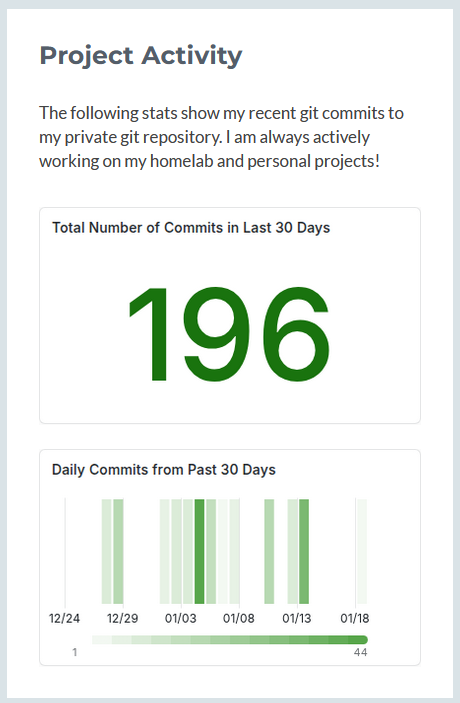
The top number, my count of commits, is a "Stat" type of chart, and I use the SQL view shared above as the data source. I use a count of commit_id and group by commit_date. I then use a filter transformation to use the dynamic date filter built into grafana, but you could also hardcode a formula that handles the last 30 days. Finally, I use the "Add field from calculation" transformation in Row index mode. From there, everything is just cosmetic - colors, etc.
The bottom graphic is a heatmap. This was more difficult to configure. My query consisted of two columns. The first returns the time using the $__timeGroup data operation on commit_date, at $__interval with a fill of 0. The second is just a count of commit_id. I then group by that first time column, and order by commit_id. I use the same first transformation as the other metric for the date range. I then use a "Format time" transformation to return the date without the time. On the cosmetic side, I hid the Y Axis, adjusted the Cell gap, and set the color scheme.
Making the Grafana Dashboard Public
Once the dashboard was completed, I selected "Share Externally" and copied the URL. In my case, "External" really just means accessible on my internal network without a Grafana login.
I did add a query parameter - ?theme=light - to the URL to change the background color. Beyond that, I was finished with my work in Grafana.
Scraping the Public Dashboard
Python Script
The python script that performs the scraping uses Playwright to run a headless chromium browser. It also handles git operations to update both the images and the index page of the site.
Capturing the Metrics with Playwright
Initializing the headless browser is fairly straightforward:
= await
= await
await
Then, I perform some checks based on the HTML elements I know should exist in the page from some previous browser inspection. Once I know those items should be loaded (or enough time has passed), I make a minor CSS change to remove the scrollbar that sometimes appears in the bottom graphic's legend. I also wait a little longer to ensure the page has fully loaded - without this, sometimes the element would not contain the actual data and just be empty.
# Wait for panels to appear (Grafana JS rendering)
await
await
# Wait a bit more for any animations
await
Finally, I perform the actual capture to PNG files and close the browser. I've also shown how to run the method here with async.
# Screenshot both specific divs by CSS selector
=
=
= /
= /
await
await
await
Updating the HTML
Modifying the index.html page was pretty easy, I just leveraged some regular expression (regex) logic to append a version parameter the href for each image. This is done to make sure the browser always loads the latest version, as well as a way to easily validate the last update.
return
=
=
# For each image, replace ?v=... or append ?v=ts if missing
# replace existing ?v=...
= rf
= rf
return
=
Git Operations
This was the trickiest part of the python script for me, mostly due to navigating different authentication methods with GitHub. This is a two step process - pull the existing repo, then commit and push after changes are made.
I created some variables at the beginning of the script to provide a temporary file path for the git repo, the URL of the remote, the branch name, and the file paths for the images and html file. The GIT_URL contains an application token, also referred to as a PAT.
=
=
=
I also used a quick shortcut function to run some direct command line operations.
The next few functions get the repo, check for changes, and finally commit and push.
=
return
= f
So the program's main function just runs grafana_capture(), the first two git functions, bump_image_versions(), and commit_and_push(), in that order.
Podman Run
To make this run regularly, I decided to create a container image. While this would also be compatible with docker, I use podman.
Playwright already has an existing image, so I used that as my base. I then did some basic tasks to get git and the few required python libraries installed. Finally, I just copied the python script and set that as the container command. The Containerfile can be found below:
FROM mcr.microsoft.com/playwright:v1.57.0-noble

RUN apt-get update && \
    apt-get install -y --no-install-recommends python3 python3-pip git && \
    apt-get clean && rm -rf /var/lib/apt/lists/*

COPY requirements.txt .
RUN pip3 install --no-cache-dir --break-system-packages -r requirements.txt

COPY git-stats-scrape.py .

CMD ["python3", "git-stats-scrape.py"]
Now I simply had to schedule the container to run. I had my MariaDB container's forgejo-import.sh script perform this task as well, to ensure it occurs both daily and after the previous database duplication/update completed.
Pushing changes with Cloudflare Pages
The final part of this is quite simple - Cloudflare Pages/Workers can connect to a GitHub-hosted git repository and run each time a commit is made. I set this up with a static build process since I am just using a basic HTML site with no build scripts required.
Summary
This post covered my particular implementation of scraping displayed metrics from Grafana into image format for use in a website, with everything automated.
This exact workflow will likely not be the best route for everyone, but I hope some of the information I shared will be beneficial to others.
Commentary
If you have any questions or thoughts on this article that you would like to share, please send me an email at [email protected] and I will get back to you. If new information is provided, I will update the article accordingly.
-
GitHub's activity chart can also be manipulated pretty easily with scripts that generate fake commits, so the accuracy is arguable to begin with. ↩